
With this update, you can now:
- Build your own dashboards with key performance metrics
- Visualize campaign results in real time
- Filter and customize dashboard and reports by account, date, platform, and metric type
- Download or share reports directly with your team
🔄 What’s Changing
The Performance Screen has been retired and replaced by the new Reporting & Dashboards tab in your main navigation.
Instead of static charts, the new dashboards are fully interactive and customizable, allowing you to track exactly what matters most to your business.
Old View: Pollen Performance
-
Fixed set of charts (Reach, Engagement, Follower Growth)
-
Limited filtering options
-
One dashboard view per account
New View: Reporting & Dashboards
-
Multiple dashboards per workspace
-
Customizable widgets (charts, tables, KPIs)
-
Cross-channel reporting (Instagram, Facebook, Email, SMS, etc.)
-
Team sharing & export capabilities
🧭 How to Access Reporting & Dashboards
-
Log into your Pollen account.
-
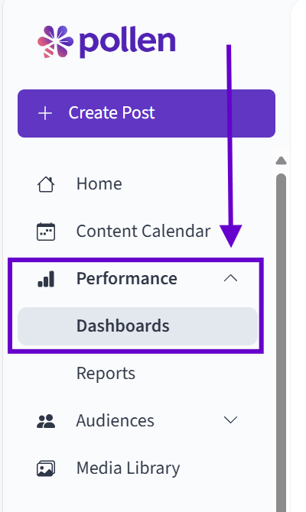
From the left-hand navigation, select Reporting & Dashboards.
-
You’ll see your default workspace dashboard. You can view, edit, or create new dashboards here.
📈 How to Create a Dashboard
Follow these steps to create a new custom dashboard:
-
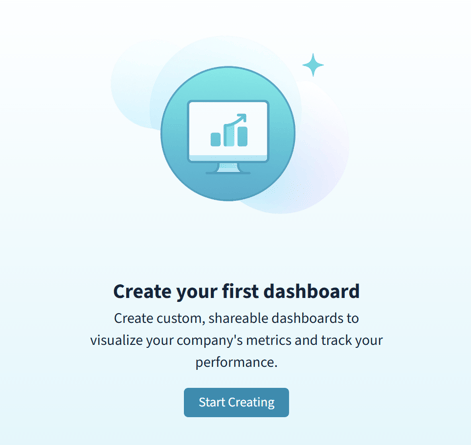
Click “Start Creating” button located on the Dashboards page.
-
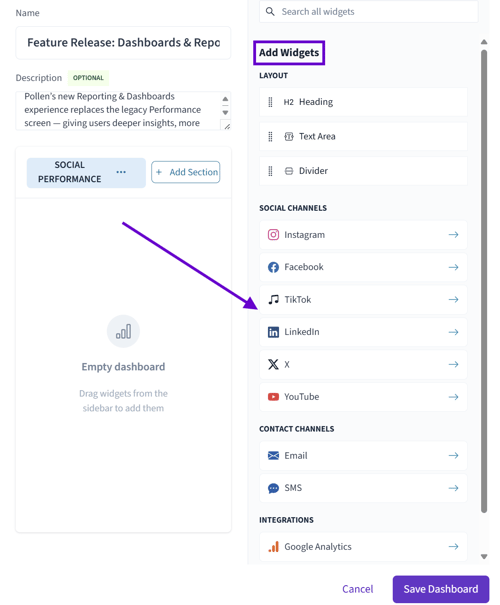
Name your dashboard & add a description (e.g., “Q4 Social Overview” or “Weekly Email Metrics”).

-
Select “Add Widget” to begin building your dashboard.
-
Choose from the available widget types:
-
📊 Bar Chart: Compare engagement, impressions, or reach.
-
📈 Line Chart: Track growth or trends over time.
-
💬 Table: View metrics in detail for each campaign.
-
⭐ KPI Card: Highlight top-level metrics (e.g., total reach, clicks, followers gained).
-
-
Use filters to narrow data by date range, platform, or campaign type.
-
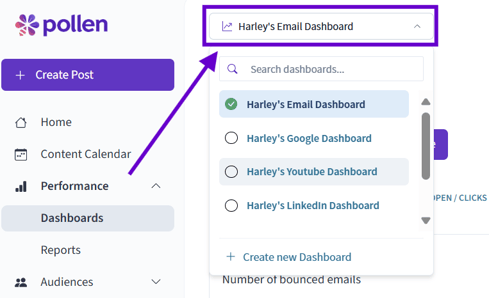
Once complete, click Save Dashboard. It will now appear in your dashboard list.
🧮 How to Create a Report
Reports are standalone summaries you can download or share.
-
Navigate to the Reports tab within Reporting.
-
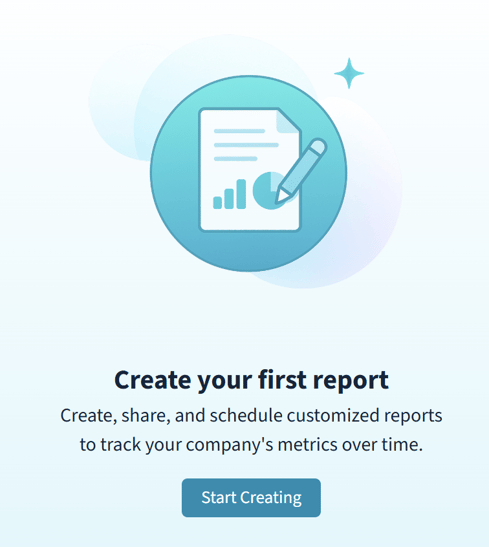
Click “Start Creating”
-
Once the Report Pop-up Opens, Start Customizing it to make it your own
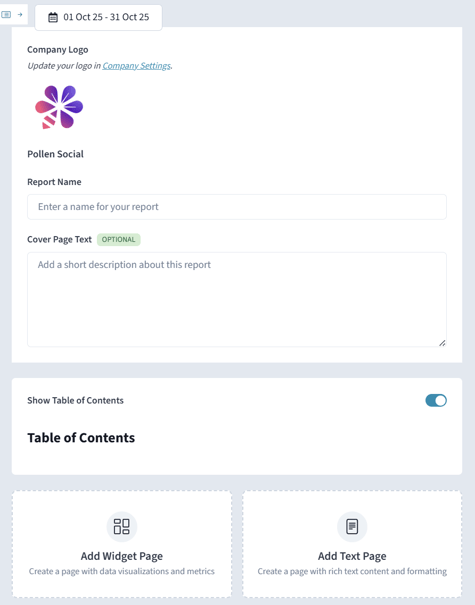
- Add your Company Logo, Report Name, Cover Page Text, Table of Contacts, Add Widget Page, and Add Text Page.
- Drag and Drop any Widgets you desire from your social platforms, email, SMS, Google Analytics, or Google My Business
-
Apply desired filters (e.g., last 7 days, Instagram only).
-
Choose the format for export: PDF, CSV, or shareable link.
-
Click Generate Report to download or schedule it for recurring delivery (weekly, monthly, etc.).
🐝 Next Steps
Explore your new Reporting & Dashboards tab today to start tracking smarter and sharing insights with your team.