
Overview
Pollen now supports publishing Instagram Stories directly from the platform, making it easier to manage your short-form, time-sensitive content alongside your regular posts, all in one place.
This article walks through how to create an Instagram Story in Pollen, what’s currently supported, and a few important things to keep in mind before publishing.
How to Create an Instagram Story in Pollen
-
Navigate to Create a Post in the left-hand navigation.
-
Select Instagram as your social channel.
- Upload your visual asset (image or video).
-
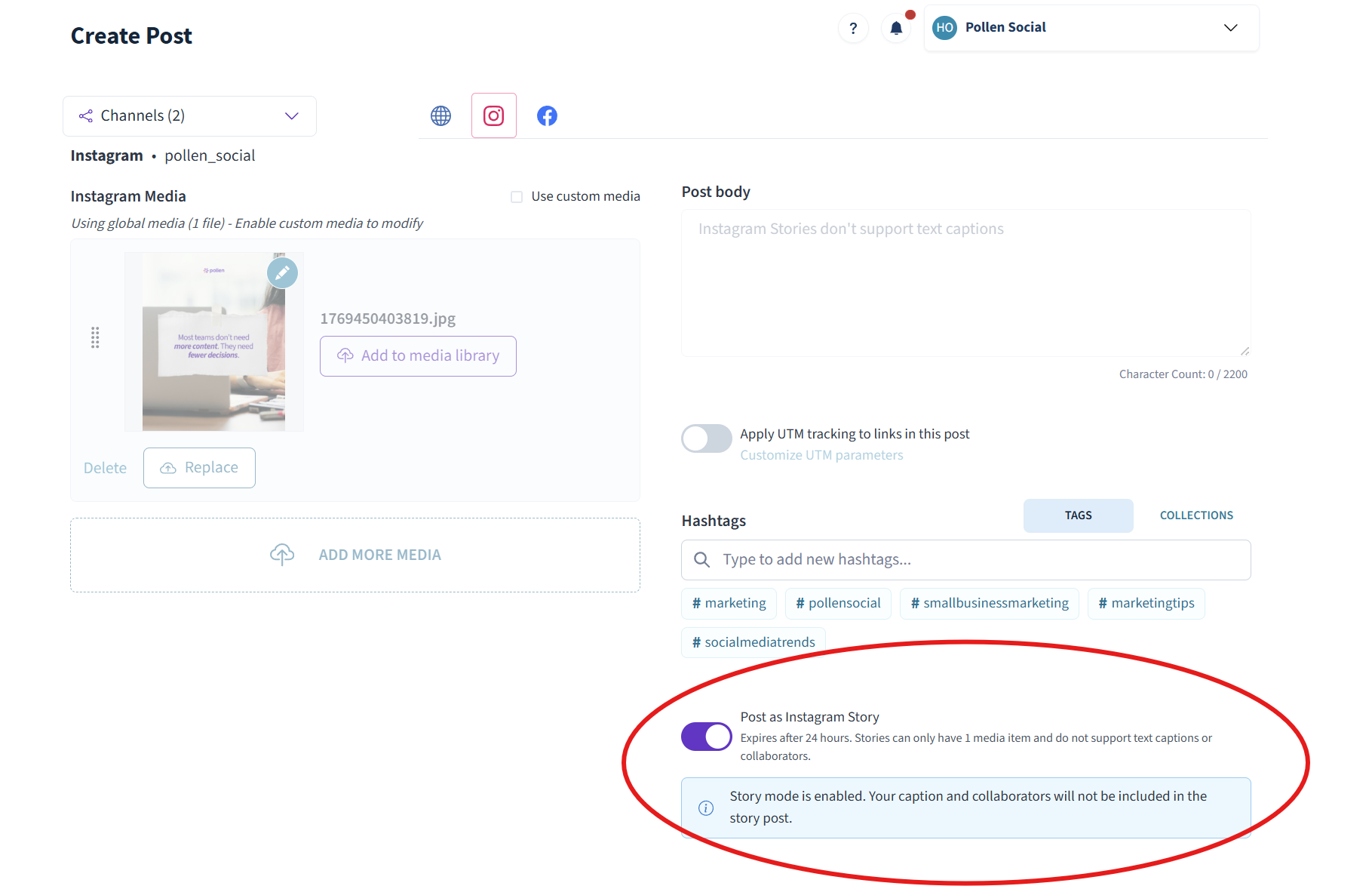
Toggle Story ON under the Instagram channel options.
-
Review your preview and schedule or publish your Story.
Once published, your Story will appear on Instagram just like native Stories.
What’s Currently Supported
-
Image and video uploads for Instagram Stories
-
Scheduling or publishing Stories directly from Pollen
-
Previewing your Story before it goes live
Important Limitations to Know
At this time, Instagram Stories created through Pollen have the following limitations:
-
Text overlays are not supported
-
Links and stickers are not supported
-
Stories are live for 24 hours, per Instagram’s standard behavior
If you need to add text, links, or interactive stickers, those elements will still need to be added natively in Instagram after publishing.
Best Practices for Instagram Stories
-
Use high-quality visuals that communicate your message without relying on text
-
Keep messaging simple and visually clear
-
Use Stories to highlight:
-
Behind-the-scenes moments
-
Announcements or reminders
-
Timely updates or promotions
-
-
Pair Stories with feed posts for stronger reach and consistency
Need Help or Have Questions?
If you’re not seeing the Story toggle or have questions about Story publishing, reach out to our team. We’re happy to help make sure everything is set up correctly.